ENEnglish
 LTLietuviškai
 DEDeutsch
 FRFrançais
 RUРусский
 ESEspañol
 PLPolski
 ITItaliano
 UKУкраїнська
 CSČeština
 PTPortuguês
 JA日本語
JA日本語 LVLatviešu valoda
 ETEesti
 HUMagyar
 IDBahasa Indonesia
 TRTürkçe
 HIहिन्दी
 ELΕλληνικά
 ARالعربية
 THไทย
THไทย VITiếng Việt
 RORomână
 MSBahasa Melayu
 BNবাংলা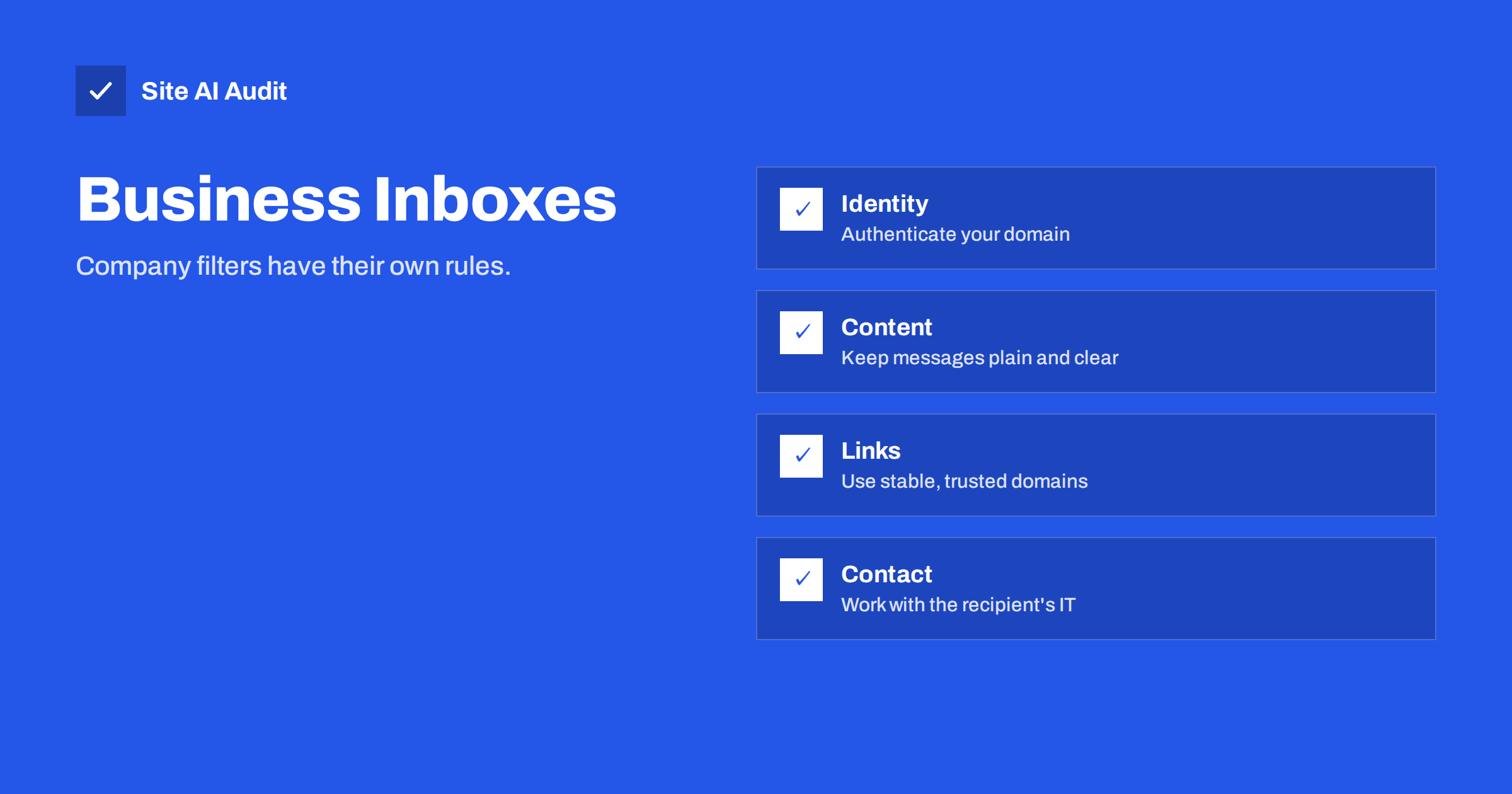
Short answer: Many companies put a security gateway in front of their mailboxes. It checks the sender’s identity, the reputation of the domain and the addresses in links, scans attachments and may hold suspicious messages for review. A message that reaches a private webmail inbox can still be quarantined at a business. To improve delivery to companies, authenticate your domain properly, send from a stable domain with a clean history, keep messages plain and relevant, avoid risky attachments and link tricks and, when needed, ask the recipient’s IT team for a review.
What a security gateway does
A secure e-mail gateway is a filter that stands between the internet and a company’s mail system. Some are separate services that receive all mail first and pass on the clean part. Others are built into the mailbox platform. Their job is to stop phishing, malware, spoofing and spam before staff see them, and they are tuned to protect the company, not to be generous to unknown senders.
Gateways often inspect more than free webmail does. They look at the authentication results, the age and reputation of the sending domain, the presence of lookalike names, the content of the message, the attachments and the addresses behind every link. Many also let administrators write their own rules, so two companies can treat the same message differently.
Why business mail is harder
- The cost of a mistake is higher. One successful phishing message can expose a whole company. Administrators prefer to block too much than too little.
- New or unknown senders are suspect. A domain that has never written to the company before may be held for extra checks, especially if it was registered recently.
- Impersonation rules. Gateways look for messages that use the name of an executive or a known supplier from a different address. A harmless sales message with a name that resembles someone inside the company can be flagged.
- Attachment scanning. Files may be opened in a sandbox, which can delay the message or block formats that look risky.
- Link checks. Addresses may be rewritten and tested, as with other protection tools. New or poorly rated domains in links raise the score.
- Policies set by humans. The settings depend on what the administrator chose. They may be strict, and they may change after an incident.
Prove who you are
The first requirement is authentication. Gateways trust messages that clearly belong to the domain they claim to come from.
- Publish SPF for every system that sends mail for your domain, and keep within the lookup limit.
- Sign with DKIM from your own domain, not only from the service’s domain.
- Publish DMARC and make sure that mail aligns with your From domain. Move toward enforcement over time, as described in moving DMARC to reject.
- Set matching reverse DNS and a proper server name for servers that send directly, as in reverse DNS and PTR records.
- Authenticate third-party tools. Mass mailing services, billing tools and help desks all need to be set up correctly; see authenticating third-party e-mail senders.
- Offer encrypted delivery. Modern servers use TLS between each other, and the policies in MTA-STS and TLS reporting show that you care about transport security.
Build a reputation they can trust
Gateways remember. A domain that sends steady, wanted mail for months earns trust, while a new domain that suddenly sends hundreds of messages looks like an attack.
- Use a stable sending domain. Do not change domains for each campaign. Keep one for business correspondence and, if you must separate, another for bulk mail.
- Warm up gradually. Start with small volumes to engaged contacts and increase slowly. See e-mail domain warm-up.
- Keep the lists clean. Remove bounced and inactive addresses. Corporate addresses that no longer exist can turn into spam traps.
- Send from a real person. A human name and a monitored reply address look more credible than a generic sender. Avoid addresses that cannot receive replies.
- Do not rely on one shared address. Shared IP addresses inherit the behaviour of neighbours; read domain versus IP reputation.
Write for filters and for people
Gateways look for patterns used by phishing: urgent language, requests for payment details, generic greetings and mismatched links. A short, clear, honest message avoids most of those.
- Name the company and the reason for writing in the first lines.
- Use visible links with descriptive text, and avoid showing one address while linking to another.
- Limit the number of links and keep them on your own, well-known domains. Tracking domains and shorteners deserve special care; see links in e-mails: tracking domains and shorteners.
- Include a plain-text version with the HTML message.
- Add a clear signature with a real address and company details, but keep images small, as discussed in e-mail signatures and deliverability.
- Offer an easy way to opt out.
Attachments
Attachments are one of the biggest triggers. Executable files, scripts and macro-enabled documents are blocked by many gateways. Password-protected archives are often held because scanners cannot open them. Even a normal PDF can be sandboxed and delayed. Whenever you can, share a link to a document on a trusted service, or put the content in the body of the message. If you must attach a file, use common formats, keep the size small and explain in the text what the attachment contains. The details are in e-mail attachments and deliverability.
Read the signals when it fails
When a business message does not arrive, look for clues.
- Bounce messages. A rejection from the gateway usually contains a code and a sentence. The codes explained in e-mail bounce codes tell you whether the cause is policy, reputation or authentication.
- Delays. Messages that arrive hours late may have been in a sandbox or a temporary hold. See greylisting and e-mail delays.
- Silence. No bounce and no reply can mean quarantine. The recipient may receive a digest that lists held messages, or the administrator may have to release it.
- Reports. Your DMARC reports show whether your messages pass authentication at major receivers.
Working with the recipient’s IT team
If an important customer cannot receive your mail, ask them to contact their IT administrator. Provide the sending domain, the exact addresses, the date and time of the failed message, the sending server addresses and any bounce text. Ask for a review and, if appropriate, for the sender to be allowed. Do not push for broad exceptions, such as turning off scanning, and understand that an administrator may decline. Allow lists are a local decision, and a careful company will check the request first. Your best argument is a well-authenticated, consistent and clearly legitimate sender.
A checklist before a business campaign
- Confirm that SPF, DKIM and DMARC pass for a test message sent through the same system as the campaign.
- Send the test to a few business addresses at different companies, if colleagues or friends can help, and ask whether it arrived in the inbox, in a junk folder or late.
- Check that every link works, that the domains are consistent and that nothing leads to a page with an expired certificate.
- Review the From name, the subject and the first lines for anything that could resemble an urgent payment request or an impersonation.
- Prepare a short note for your account managers, so they know what to do if a customer reports missing mail.
- Start with a small group, watch bounces and replies for a day and only then send to the rest.
This routine takes less than an hour, and it spares you the awkward moment when an important customer tells you that they never received your quote or your invoice. It also builds a record of what worked, which helps the next time you change systems or domains.
How Site AI Audit helps
Site AI Audit does not talk to your recipients’ gateways. It checks the e-mail authentication on your domain, including SPF, DKIM and DMARC, together with SSL, HTTPS redirects, security headers and the pages your links lead to, explained in plain words and ranked by impact. A clean setup is the best base for business delivery. The first check is free, covers up to 50 pages and needs no sign-up. You can run a free check of your website or see the plans for regular monitoring.
Related reading
- Email Deliverability Checklist: 20 Checks for Small Businesses
- DMARC Explained: Policies, Alignment and a Safe Rollout
- Spam Traps Explained: What They Are and How to Avoid Them
- Why Are My Emails Going to Spam? 12 Causes and Fixes
The bottom line
Business inboxes are guarded by systems that favour caution. To reach them, prove your identity with SPF, DKIM and DMARC, keep a steady sending history on a stable domain, write plain and honest messages, treat attachments and links carefully and read bounce signals when something fails. When a key customer is affected, a polite request to their IT team, with clear technical details, is the most reliable way forward.
الأسئلة الشائعة
Why do my messages reach Gmail but not a company?
Company gateways apply their own, often stricter rules, including new-sender checks, impersonation rules and attachment scanning. The same message can pass at one and be held at the other.
Can I ask a customer to allow my address?
Yes, through their IT team. Give the exact domain, addresses and sending servers. Expect a review, and do not ask for scanning to be switched off.
Do attachments cause more problems for business mail?
Often, yes. Scripts, macros and protected archives are commonly blocked. Share links to documents or use common formats with an explanation in the message.
Will DMARC help with company filters?
It helps because it proves that your messages come from you. It does not guarantee delivery, but missing authentication makes strict gateways much less friendly.
How long does it take to build trust with a gateway?
It depends on volume and recipients. Steady, wanted sending over weeks and months builds reputation. Sudden changes in volume or domain can reset it.