 ENEnglish
 LTLietuviškai
 DEDeutsch
 FRFrançais
 RUРусский
 ESEspañol
 PLPolski
 ITItaliano
 UKУкраїнська
 CSČeština
 PTPortuguês
 JA日本語
JA日本語 LVLatviešu valoda
 ETEesti
 HUMagyar
 IDBahasa Indonesia
 TRTürkçe
 HIहिन्दी
 ELΕλληνικά
 ARالعربية
 THไทย
THไทย VITiếng Việt
 RORomână
 MSBahasa Melayu
 BNবাংলা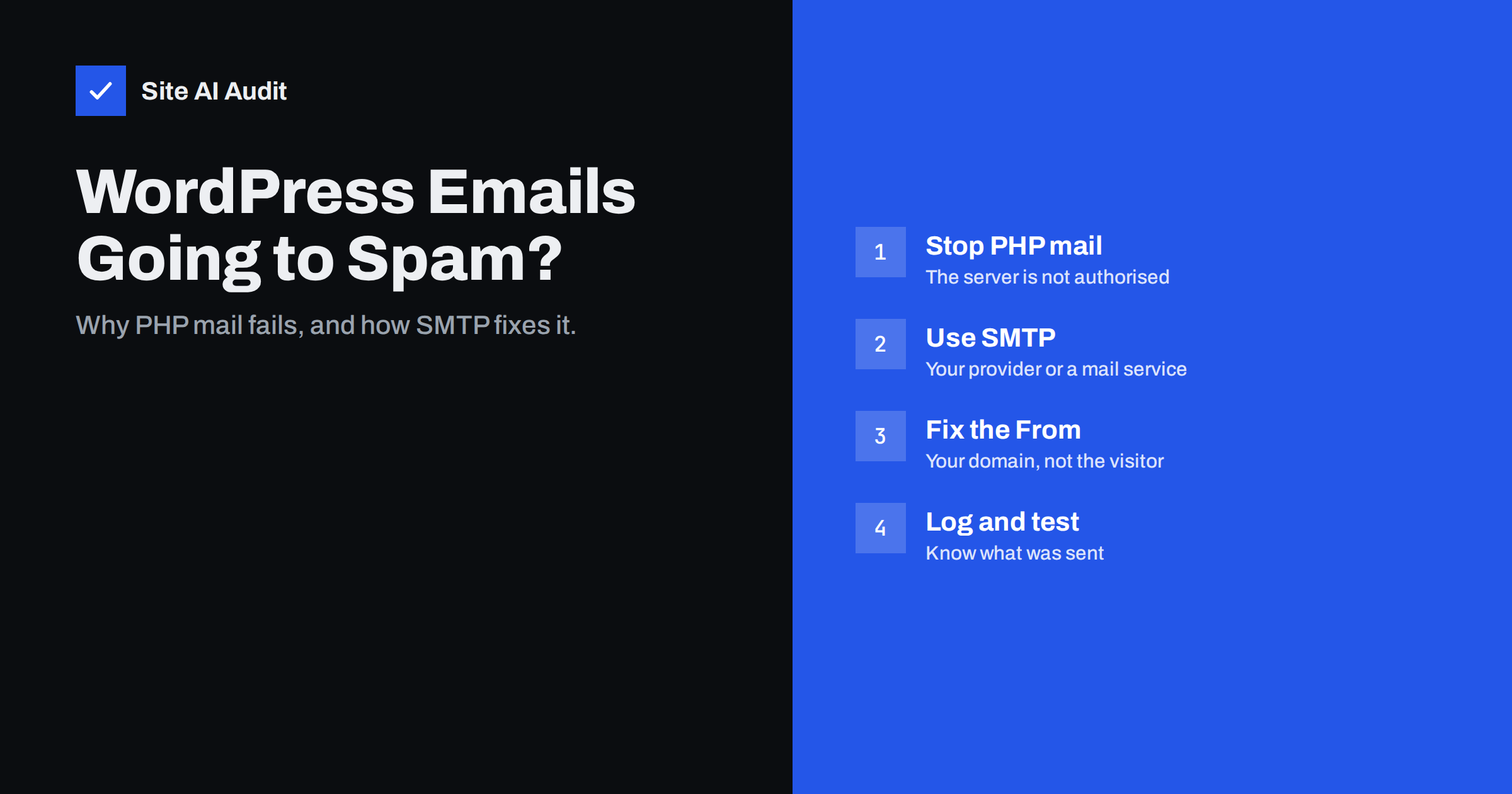
Short answer: WordPress sends mail through PHP’s mail() function by default, which hands messages to the web server with your domain in the From address but without SPF authorisation or a DKIM signature for your domain. Receivers see unauthenticated mail and filter or reject it. The fix is to send WordPress mail through authenticated SMTP, either your mailbox provider or a transactional mail service, with a From address on your own domain that is covered by SPF, DKIM and DMARC.
Why WordPress mail fails so often
WordPress sends a surprising amount of mail: contact form notifications, new user registrations, password resets, comment notifications, WooCommerce order confirmations, invoices and shipping updates. All of it goes through a single function, wp_mail(), which by default uses PHP’s built-in mail handling on the web server.
On most hosting, that means the message leaves from the web server’s IP address, often a shared server hosting hundreds of other sites. That IP is usually not listed in your domain’s SPF record. The message carries no DKIM signature for your domain. If your domain publishes DMARC, the message fails it. Even without DMARC, large providers are increasingly strict with unauthenticated mail, and the shared IP’s reputation depends on every other site on the server.
The result is familiar to many site owners: form notifications that arrive in spam or not at all, customers who never get order confirmations, and password reset links that vanish. Some hosts block outgoing mail from PHP entirely to protect their IP reputation, in which case nothing is delivered and WordPress does not tell you.
It is worth stressing that this is not a WordPress bug. The platform simply leaves mail delivery to the server it runs on, and that default made sense when most mail servers trusted each other. Today it is a configuration task that every site owner has to finish, just like setting up SSL or backups.
Symptoms and what they point to
| Symptom | Likely cause |
|---|---|
| No form notifications at all | Host blocks PHP mail, or the From address is rejected by your own mail server |
| Notifications arrive in spam | Unauthenticated mail from the web server’s IP |
| Customers do not get order e-mails, but you do | Your own mail server accepts them internally; external providers filter them |
| Mail works for some recipients only | Receivers with DMARC checks or strict filtering reject it |
| Mail stopped after publishing DMARC | Web server mail now fails an enforced policy |
| Mail stopped after moving the site | New host blocks mail, or old SMTP credentials no longer work |
A particular trap: if your mailboxes are hosted on the same server as your website, messages from WordPress to your own address may be delivered locally and look fine. The problem shows only when a customer at Gmail or Outlook is the recipient. Always test with an external address.
The fix: send through authenticated SMTP
Instead of PHP mail, configure WordPress to log in to a proper mail server and send through it. The server then signs the message with DKIM for your domain, sends it from IP addresses covered by your SPF record, and the message passes DMARC. There are two common options:
- Your mailbox provider. Google Workspace, Microsoft 365 and most hosting mail services allow SMTP submission from applications. Create a dedicated mailbox such as
[email protected]and use its credentials. Check the provider’s sending limits and its requirements for app passwords or OAuth, because many providers no longer accept plain passwords for SMTP. - A transactional e-mail service. These services are built for automated mail, offer API or SMTP sending, delivery logs and bounce handling, and let you authenticate your domain with DKIM. They suit online shops and sites that send more than a handful of messages a day.
In WordPress, an SMTP plugin replaces the default mail function with the chosen server or API. Several well-known plugins do this; pick one that is actively maintained, supports your provider’s authentication method and, ideally, logs sent messages. Store credentials securely, and prefer API keys or OAuth over a mailbox password where the plugin supports it.
Get the From address right
Many contact form plugins are configured to send notifications “from” the visitor’s address, so that clicking reply goes to the visitor. That breaks authentication completely: your server cannot send as [email protected], and Gmail’s DMARC policy tells receivers to treat such messages as suspicious.
The correct setup is:
- From: an address on your own domain, such as
[email protected], matching the SMTP account or authenticated domain. - Reply-To: the visitor’s address, taken from the form field.
- From name: something recognisable, such as “Your Company Website”.
Check every plugin that sends mail. WooCommerce, form builders, membership plugins and booking plugins each have their own From settings, and one of them may still override the SMTP plugin with a different address.
Authenticate the domain for the sending service
If you send through your mailbox provider and its SPF include and DKIM are already set up, website mail is covered automatically. If you use a transactional service, you must authenticate your domain there:
- Add the service’s DKIM record (TXT or CNAME) to your DNS.
- If the service offers a custom return-path or bounce domain, set it up on a subdomain; this aligns SPF too.
- Add the service’s SPF include only if its documentation asks for it on your root domain, and watch the ten-lookup limit.
- Verify in the service’s dashboard that the domain shows as authenticated.
- Send a test to a Gmail address and check “Show original” for SPF, DKIM and DMARC PASS.
After this, you can safely move your DMARC policy towards enforcement without losing website mail.
Testing and logging
Most SMTP plugins include a “send test e-mail” button. Use it, but also test the real flows: submit the contact form, register a test account, request a password reset and place a test order. Each flow may use a different template and sender setting.
Enable logging of sent mail, either in the plugin or in the transactional service. When a customer says they never received an order confirmation, a log that shows whether the message was accepted, bounced or rejected turns a guessing game into a two-minute answer. Keep logs for a limited time, because they contain personal data.
Finally, set up a simple monitor: a weekly form submission to an external mailbox, or alerts from the mail service when bounces or failures spike. Silent failures are the worst kind, because nobody complains about mail they never knew they should have received.
Other WordPress mail problems worth checking
- Spam submissions. Unprotected forms get abused to send junk through your site. Add spam protection so your mail server does not send hundreds of notifications with malicious content, which would damage its reputation.
- Heavy notification volume. Comment and user registration notifications can pile up. Turn off the ones nobody reads.
- Staging sites. A copy of the shop on a staging server can send real order e-mails to real customers. Disable outgoing mail or route it to a test inbox on staging.
- Cron-dependent mail. Some plugins queue mail and send it on WP-Cron. On low-traffic sites, delays occur until someone visits; a real server cron job fixes that.
How an outside check helps
You cannot see from the outside whether a particular WordPress message was delivered, but you can see whether the domain is ready for authenticated mail. Site AI Audit checks SPF and its lookup limit, DKIM, DMARC and MX records next to the website’s speed, SEO, SSL and security headers, so a WordPress site and its e-mail setup appear in one report with plain-language fixes. Start with a free check of your site; paid plans repeat the checks and alert you when something breaks.
Related reading
- Why Are My Emails Going to Spam? 12 Causes and Fixes
- How to Fix a Slow WordPress Site: A Step-by-Step Guide
- SPF Record Explained: What It Does and How to Set It Up
- What Is DKIM and How to Set It Up for Your Domain
The bottom line
WordPress mail lands in spam because PHP mail from a web server is unauthenticated. Send through authenticated SMTP or a transactional service, use a From address on your own domain with the visitor in Reply-To, authenticate the domain with DKIM, and test every real flow with an external mailbox. Then keep logs, so the next “I never got the e-mail” has an answer.
FAQ
Why does my WordPress contact form not send e-mails?
Usually because the host blocks PHP mail, or because the message is unauthenticated and filtered as spam. Configure an SMTP plugin with your mail provider or a transactional service and test with an external address.
Should the contact form send from the visitor’s e-mail address?
No. Send from an address on your own domain and put the visitor’s address in Reply-To. Sending as the visitor fails SPF, DKIM and DMARC for their domain.
Can I use my Gmail or Outlook mailbox for WordPress SMTP?
Yes, business mailboxes on Google Workspace or Microsoft 365 can send via SMTP with an app password or OAuth. Check sending limits; busy shops are better served by a transactional mail service.
Why do WooCommerce order e-mails go to spam?
They are usually sent by PHP mail from the web server without authentication. Route them through authenticated SMTP with DKIM for your domain, and check that WooCommerce’s From address uses your domain.
Do I need an SMTP plugin if my host provides e-mail?
Often yes. PHP mail on the same host is still sent from the web server without DKIM in many setups. An SMTP plugin that logs in to the host’s mail server gives you proper authentication.
How do I stop my staging site from e-mailing customers?
Disable outgoing mail on staging or route all mail to a test inbox with a plugin or server setting. Never copy a production shop to staging without doing this first.


