 ENEnglish
 LTLietuviškai
 DEDeutsch
 FRFrançais
 RUРусский
 ESEspañol
 PLPolski
 ITItaliano
 UKУкраїнська
 CSČeština
 PTPortuguês
 JA日本語
JA日本語 LVLatviešu valoda
 ETEesti
 HUMagyar
 IDBahasa Indonesia
 TRTürkçe
 HIहिन्दी
 ELΕλληνικά
 ARالعربية
 THไทย
THไทย VITiếng Việt
 RORomână
 MSBahasa Melayu
 BNবাংলা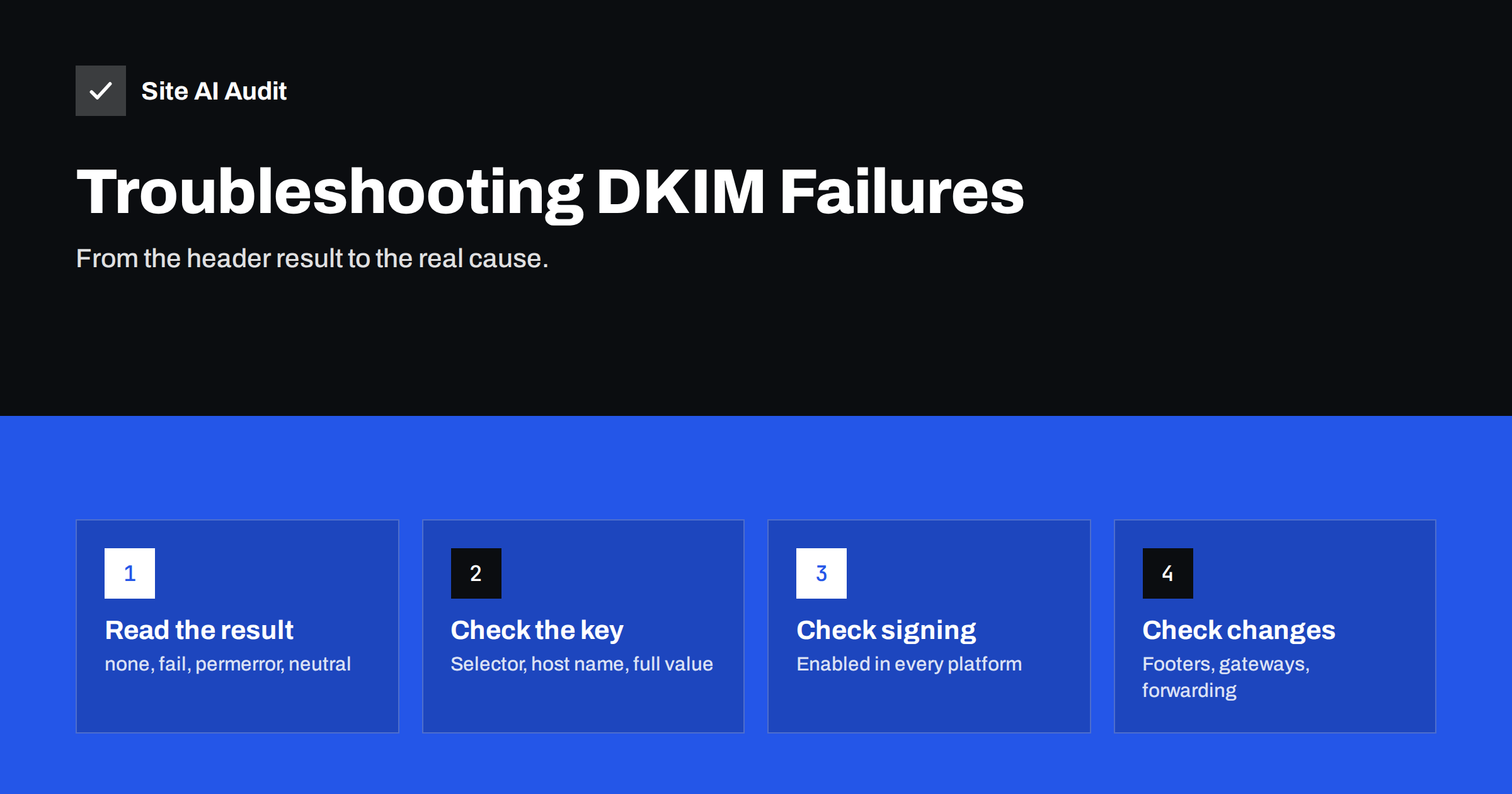
Short answer: Start with the exact DKIM result in the message’s Authentication-Results header. dkim=none means the message was not signed, so enable signing in the sending service. dkim=fail with “no key” or a DNS error points to a missing or misnamed record at selector._domainkey. dkim=fail with “bad signature” or “body hash did not verify” means the message changed after signing or the published key does not match. permerror usually means a malformed or truncated key. And a pass for the wrong domain is an alignment problem, fixed with custom domain DKIM.
Step 1: get a real header and read the result
Troubleshooting DKIM without a real message header is guesswork. Send a message from the system you are investigating to a Gmail or Outlook.com address, open the full source (“Show original” in Gmail) and find two headers:
DKIM-Signature, added by the sender. It contains the signing domain (d=), the selector (s=), the list of signed headers (h=) and the body hash (bh=). If this header is absent, the message was not signed.Authentication-Results, added by the receiver. It contains the verdict, such asdkim=pass header.d=yourdomain.comordkim=fail (bad signature), often with a short reason in brackets.
Messages can carry several DKIM signatures, for example one from your domain and one from the sending platform. Each is evaluated separately, and the receiver may report several results. For DMARC, what matters is whether at least one signature both passes and uses your domain.
Test from each system separately. A mailbox, a newsletter platform and a website form can all send with the same From domain but sign differently, and a problem in one says nothing about the others. Keep the test messages; comparing a passing and a failing header side by side often reveals the difference immediately.
Step 2: match the result to its likely cause
| Result in headers | Most likely cause | Where to look |
|---|---|---|
dkim=none | Signing not enabled, or mail sent by a different system than you think | Service admin settings; Received headers |
dkim=fail (no key for signature / key not found) | Record missing, wrong selector, wrong host name, DNS not updated yet | DNS lookup of selector._domainkey.domain |
dkim=fail (bad signature / body hash did not verify) | Message modified after signing, or key mismatch after regeneration | Gateways, footers, list servers; the published key |
dkim=permerror | Malformed record: broken quotes, truncated key, wrong syntax | The TXT value as served by DNS |
dkim=temperror | Temporary DNS failure | DNS provider status; retry later |
dkim=pass but dmarc=fail | Signature from the vendor’s domain, not yours | The d= value; custom domain setup in the platform |
Step 3: when the message is not signed (dkim=none)
This is the simplest case and one of the most common. Check:
- Is signing enabled? Google Workspace requires pressing “Start authentication” after publishing the key. Microsoft 365 requires enabling DKIM for each custom domain in the Defender portal. Many newsletter and CRM tools have a separate “authenticate domain” step.
- Is the right system sending? Look at the Received headers. A website form may be sending directly from the web server instead of through your provider, and web servers typically do not sign.
- Is the right domain configured? If you have several domains or aliases, signing may be enabled for the primary domain only.
Step 4: when the key cannot be found
Take the selector and domain from the DKIM-Signature header and look up the record exactly: dig TXT selector._domainkey.yourdomain.com +short. If the platform uses CNAME records, use dig CNAME first and then look up the target.
Frequent causes:
- Doubled domain name. The DNS panel appends the domain automatically, so entering the full name produces
selector._domainkey.yourdomain.com.yourdomain.com. Enter onlyselector._domainkey. - Wrong selector. The record was published with a different selector from the one the service uses, often after regenerating a key.
- Record on the wrong domain, such as the main domain when the service signs with a subdomain, or the reverse.
- DNS moved. The domain’s DNS hosting changed and the DKIM records were not copied. This is very common after website or registrar migrations.
- Propagation. The record was added minutes ago; negative answers can be cached for the zone’s negative TTL.
Step 5: when the signature is bad
A “bad signature” or “body hash did not verify” result means the key was found, but the message no longer matches what was signed, or the key does not match the private key used.
If the message was modified:
- A security gateway or antivirus on your outbound path adds a banner, disclaimer or footer after signing.
- A mailing list or forwarding service changes the subject or body before delivery.
- A system re-encodes the message, changing line endings or character encoding.
- Link-rewriting or tracking is applied after signing.
Fix the order of operations: signing must be the last step before the message leaves your infrastructure. If a disclaimer tool runs after your mail server signs, move signing to the gateway or add the disclaimer earlier.
If the key does not match: the private key was regenerated in the service but the old public key is still in DNS, or two services share a selector name and overwrite each other’s records. Republish the current key from the service’s admin panel, and give each service its own selector.
Step 6: when the record is malformed
Look at the TXT value exactly as DNS serves it. A valid key record looks like v=DKIM1; k=rsa; p=MIIBIjANBg.... Problems include:
- Truncated keys: 2048-bit keys are longer than 255 characters and must be split into multiple quoted strings in one record. Some DNS panels cut them off instead.
- Extra quotes or spaces introduced by copying from a document or a web page.
- Line breaks inside the key pasted from an e-mail.
- A missing
p=value, which is the explicit way to revoke a key and makes every signature with that selector fail.
If your DNS provider cannot store long records reliably, use a CNAME-based setup where the service hosts the key, or choose a DNS host that handles long TXT records correctly.
Step 7: when DKIM passes for the wrong domain
Many platforms sign every message with their own domain by default. The result reads dkim=pass header.d=platform.example, which looks healthy but does nothing for your DMARC alignment. Look for “custom domain authentication”, “sender authentication” or “branded sending domain” in the platform’s settings, publish the records they provide, and verify that header.d shows your domain or a subdomain of it.
After each fix, test again with a fresh message and check the header. DMARC aggregate reports confirm the result at scale within a day or two. For the published side, Site AI Audit checks DKIM together with SPF (including the lookup limit), DMARC and MX records, and explains findings in plain words. A free check helps confirm the DNS part; paid plans alert you if a record disappears later.
Preventing DKIM problems in the future
Most DKIM failures are introduced by changes, not by the original setup. A few habits prevent the majority of them:
- Keep a list of selectors and the service each one belongs to. When someone cleans up DNS, they will know which records are in use.
- Copy DNS zones completely when changing DNS host, then compare every record, including long TXT values, before switching nameservers.
- Test after every change in a sending platform, mail gateway or DNS provider, using a real message and the headers.
- Rotate keys deliberately, publishing the new key under a new selector before switching, and removing the old one only after messages in transit have been delivered.
- Watch DMARC reports for a sudden rise in DKIM failures from a source that used to pass; it is usually the first sign that something changed.
Related reading
- What Is DKIM and How to Set It Up for Your Domain
- How to Read Email Headers to Check SPF, DKIM and DMARC
- Email Forwarding and Authentication: SPF, SRS and ARC Explained
The bottom line
DKIM failures fall into a few clear categories, and the header tells you which one you have. No signature means signing is off or the wrong system is sending. A missing key means DNS is wrong. A bad signature means the message changed or the key was replaced. A malformed record means the value was mangled. A pass for the wrong domain means the platform needs custom authentication. Fix the cause, test again, and confirm in DMARC reports.
DUK
What does dkim=none mean?
The receiver found no DKIM signature to evaluate. Enable DKIM signing in the service that sent the message, and check that the message did not come from an unexpected system such as a web server.
What does “body hash did not verify” mean?
The message body changed after it was signed. Look for footers, disclaimers, link rewriting or re-encoding added by gateways, list servers or forwarding services.
Why does DKIM fail after I moved my DNS?
The DKIM records were probably not copied to the new DNS host, or the long key was truncated during the move. Look up the selector record and republish it from the service’s admin panel.
Can two services use the same DKIM selector?
They should not. Each service needs its own selector so that its public key lives at a unique DNS name.
Why does DKIM pass but DMARC fail?
Because the passing signature belongs to another domain, usually the sending platform’s. Set up custom domain authentication so the service signs with your domain.
How long does it take for a new DKIM record to work?
Often minutes, but it depends on DNS caching, including cached negative answers. Wait for the TTL and test again before changing anything else.


