 ENEnglish
 LTLietuviškai
 DEDeutsch
 FRFrançais
 RUРусский
 ESEspañol
 PLPolski
 ITItaliano
 UKУкраїнська
 CSČeština
 PTPortuguês
 JA日本語
JA日本語 LVLatviešu valoda
 ETEesti
 HUMagyar
 IDBahasa Indonesia
 TRTürkçe
 HIहिन्दी
 ELΕλληνικά
 ARالعربية
 THไทย
THไทย VITiếng Việt
 RORomână
 MSBahasa Melayu
 BNবাংলা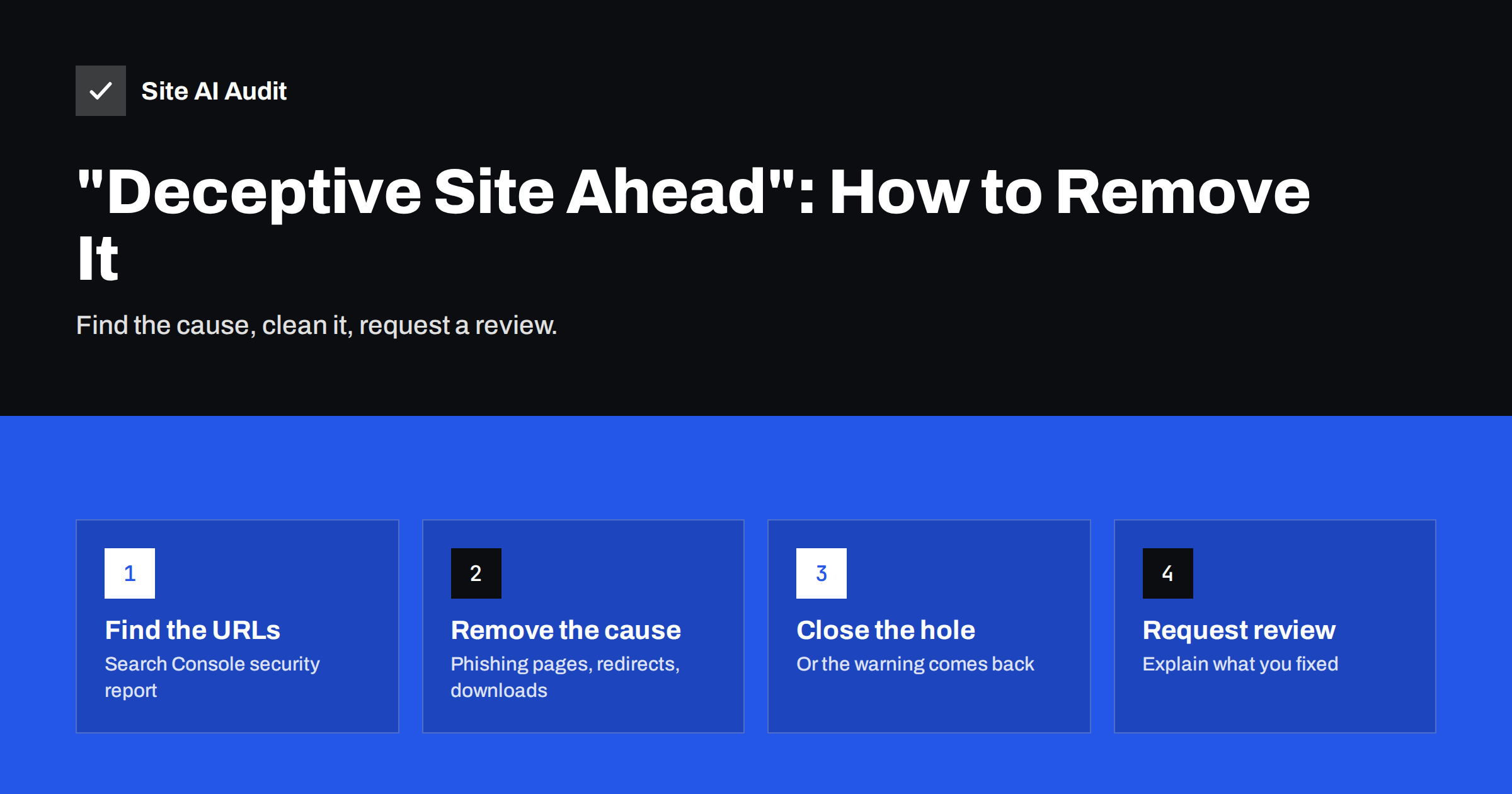
Short answer: “Deceptive site ahead” is a Google Safe Browsing warning shown by Chrome, Firefox, Safari and other browsers when a site is believed to host phishing or social engineering content – usually pages planted by attackers on a hacked site, but sometimes misleading pages the owner created. To remove it, verify your site in Google Search Console, open the Security issues report to see the flagged URLs, remove the harmful content and the vulnerability that allowed it, then request a review. Reviews for phishing issues are typically processed within a few days.
Few things drop a website’s traffic as abruptly as a full red screen warning visitors that the site “may trick you into doing something dangerous”. Most visitors turn back, e-mail links stop working for customers, and advertising platforms may pause campaigns. The warning is not permanent, though. It is removed once the cause is gone and a review confirms it. This guide explains what triggers the warning, how to find the specific problem on your site, and how to get the warning lifted as quickly as possible.
What the warning means
Google Safe Browsing maintains lists of unsafe web resources. Browsers check addresses against these lists and show interstitial warnings for matches. Different categories produce different messages:
| Warning | Category | Typical cause |
|---|---|---|
| Deceptive site ahead | Social engineering / phishing | Fake login pages, fake bank or payment forms, fake support pages |
| The site ahead contains malware | Malware | Code that tries to install harmful software on visitors’ devices |
| The site ahead contains harmful programs | Unwanted software | Downloads that bundle unwanted or deceptive software |
| Dangerous or suspicious download | Malicious or uncommon files | A specific file rather than the whole site |
The warning can apply to the whole domain, a subdomain, a folder or specific URLs. Understanding which one applies to you is the first step.
Why legitimate sites get flagged
The vast majority of flagged small business sites did nothing deceptive on purpose. Common causes include:
- Phishing kits uploaded by attackers. After exploiting a vulnerable plugin or stolen password, attackers upload a folder with a fake bank, parcel service or e-mail login page, then send spam linking to it. Your domain’s good reputation makes their e-mails more convincing.
- Malicious redirects. Injected code sends some visitors to scam pages, and your URLs become part of the deceptive chain.
- Compromised third-party content. An ad network, widget or script you embed starts serving deceptive content.
- Abandoned subdomains or folders. An old campaign subdomain pointing to an expired external service can be taken over and used for phishing.
- Genuinely misleading content. Fake download buttons, pages imitating another brand’s login, or “your computer is infected” style messages – even if meant as marketing – can meet the definition of social engineering.
How to remove the warning, step by step
Step 1: Confirm the warning and gather details
- Open your site in Chrome in a normal and a private window, and note the exact wording.
- Check the Google Safe Browsing site status tool (available from Google’s Transparency Report) for your domain. It shows the current status and sometimes examples.
- Verify ownership of your site in Google Search Console if you have not already. The Security issues report lists the issue type and sample URLs, which is the most precise information available.
- Check your inbox for notifications from Search Console, your host or anti-abuse teams; they often contain URLs.
Step 2: Find the harmful content
Start with the URLs Search Console shows. They are samples, so look for the pattern: a folder such as /wp-content/uploads/2023/secure-login/, a set of random-looking files, or a specific plugin path. Then search more widely:
- List recently created or modified files on the server and look for folders containing HTML login pages, images of bank logos or PHP scripts that send form data by e-mail.
- Search the database for injected scripts and unexpected redirect code.
- Check
.htaccessand other configuration files for redirect rules you did not add. - Test the site from a phone on mobile data and from a search result, since redirects are often conditional.
- Review third-party scripts and ads loaded on your pages.
Step 3: Remove it and close the hole
Delete the phishing pages, malicious files and injected code, or restore a clean backup from before the compromise. Then close the entry point, otherwise the attacker will upload a new kit within days and the next review will fail:
- Update or remove outdated plugins, themes and CMS versions.
- Change all passwords – hosting, CMS, FTP/SSH, database – and enable two-factor authentication.
- Remove unknown user accounts and unused software.
- Delete DNS records for abandoned subdomains.
- Replace or remove a compromised third-party script.
If the flagged content was something you created deliberately, such as a misleading download button, change or remove it so that it no longer imitates another brand or pushes visitors into actions under false pretences.
Step 4: Request a review
In the Search Console Security issues report, confirm that you have fixed the issues and request a review. In the request, describe briefly and specifically what you found and did – for example: “Removed a phishing kit in /wp-content/uploads/2023/secure-login/, uploaded through an outdated file manager plugin, which we deleted. Updated all plugins, reset all passwords and enabled two-factor authentication.” Vague requests (“we fixed it”) are more likely to be rejected.
Google’s documentation on social engineering (phishing and deceptive sites) describes what counts as deceptive and how reviews work. If the review fails, the report tells you, and you can request another one after further cleanup. Repeated failures can lengthen the waiting time before the next review, so make sure the site is truly clean first.
Subdomains, shared hosting and other sites
A warning on your main domain is sometimes caused by content elsewhere. If the flagged URLs sit on a subdomain run by another team or vendor, contact them – they must clean it, and you may want to remove the DNS record until they do. On shared or reseller hosting, attackers often infect every site in the same account, so check all of them, not just the one that is flagged, before requesting a review. Agencies hosting many client sites on one server should scan the whole server; otherwise one uncleaned site keeps reinfecting the others and reviews keep failing.
While you wait
- Inform customers and partners briefly if they have contacted you about the warning.
- Pause paid campaigns that send traffic to flagged URLs; advertising platforms may have suspended them already.
- Check whether your domain was used to send phishing e-mails and whether your mail server or domain appears on blocklists.
- Monitor the site for new suspicious files, in case the attacker still has access.
Preventing the warning in the future
Most “deceptive site” warnings on small business sites trace back to a compromise, so prevention is about the basics: updates, strong unique passwords with two-factor authentication, fewer plugins, tested backups, and removal of forgotten subdomains and test installations. Keep your site verified in Search Console so security notifications reach you by e-mail the moment an issue is detected – often before customers notice. External monitoring adds a second pair of eyes that does not depend on the site’s own plugins, which attackers sometimes disable.
Why speed matters
Every day the warning stays up costs visitors, sales and trust, and the longer an attacker controls part of your site, the more spam and phishing is sent under your domain name. That damage outlasts the warning: mail providers remember domains that sent phishing, and customers remember the red screen. Acting within hours rather than days – confirming the issue, removing the content, closing the hole and requesting a review – keeps both the outage and the lasting reputational effect as small as possible.
How Site AI Audit helps
Site AI Audit checks your site from outside: SSL certificate, HTTPS redirect, security headers, exposed software versions, and a crawl of your pages for broken links, redirects and indexing problems. It is not a malware scanner and does not replace Search Console’s security report, but its findings – outdated software versions, unexpected redirects, missing protections – often point to the weaknesses attackers use. Monitoring on paid plans alerts you when something changes. Check your site for free.
Related reading
- Website Hacked? A Step-by-Step Recovery Plan for Owners
- 9 Signs Your Website Has Been Hacked (and How to Check)
- Why Your Website Says “Not Secure” and How to Fix It
The bottom line
“Deceptive site ahead” means Safe Browsing found phishing or social engineering content on your site – usually planted by an attacker. Use Search Console to find the flagged URLs, remove the content, close the vulnerability that let it in, and request a review with a specific description of what you fixed. Then put updates, strong access controls and monitoring in place so it does not happen again.
DUK
How long does it take to remove the “Deceptive site ahead” warning?
After you request a review in Search Console, reviews for phishing issues typically take a few days. The warning disappears from browsers shortly after a successful review.
Is “Deceptive site ahead” the same as “Not secure”?
No. “Not secure” concerns the connection, such as missing HTTPS. “Deceptive site ahead” means Safe Browsing believes the site hosts phishing or misleading content, which is far more serious.
Can my site be flagged without being hacked?
Yes, if it contains content that imitates another brand, uses fake download buttons or pushes visitors into actions under false pretences. Compromised third-party scripts or ads can also cause it.
Do I need Google Search Console to remove the warning?
It is the standard way to see the flagged URLs and request a review for your site. Verifying ownership takes a few minutes and also gives you security notifications in the future.
What if my review request is rejected?
The site still contains harmful content or the problem reappeared. Search again for remaining files and redirects, check other sites in the same hosting account, confirm the entry point is closed, and then request another review.


