ENEnglish
 LTLietuviškai
 DEDeutsch
 FRFrançais
 RUРусский
 ESEspañol
 PLPolski
 ITItaliano
 UKУкраїнська
 CSČeština
 PTPortuguês
 JA日本語
JA日本語 LVLatviešu valoda
 ETEesti
 HUMagyar
 IDBahasa Indonesia
 TRTürkçe
 HIहिन्दी
 ELΕλληνικά
 ARالعربية
 THไทย
THไทย VITiếng Việt
 RORomână
 MSBahasa Melayu
 BNবাংলা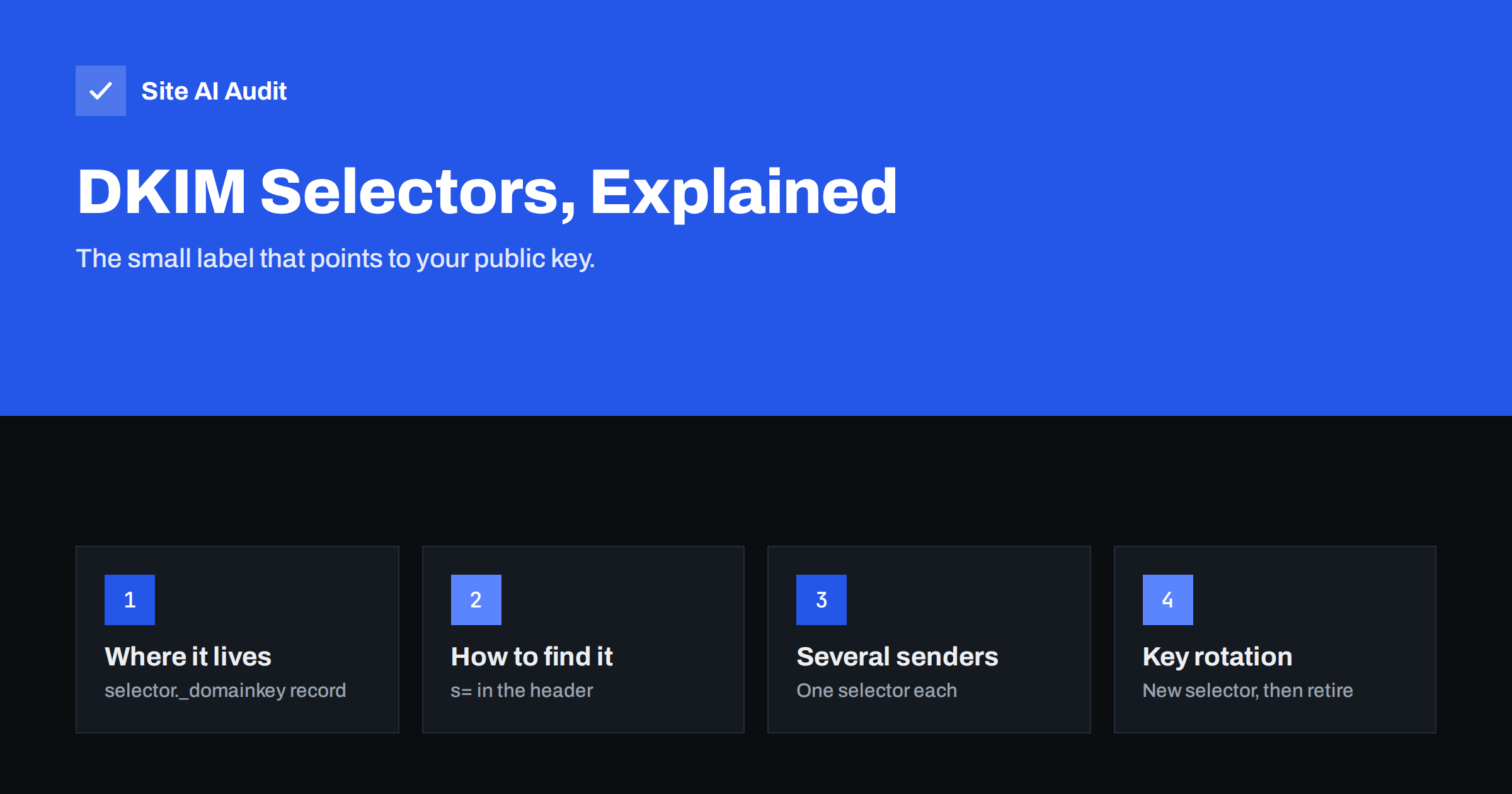
Short answer: A DKIM selector is a short name, such as google or selector1, that tells receiving mail servers where to look up the public key for a DKIM signature. The key lives in DNS at selector._domainkey.yourdomain.com. You find your selector in the s= tag of the DKIM-Signature header of any email you send, and you can use several selectors at once: one for each sending service and a new one whenever you rotate keys.
What a DKIM selector does
DKIM (DomainKeys Identified Mail) adds a digital signature to every outgoing email. The sending server signs selected headers and the body with a private key; the receiving server fetches the matching public key from DNS and checks the signature. If the message was altered or the key does not match, the check fails.
A single domain often needs more than one key. Your office mailbox provider signs with one key, your newsletter platform with another, and your online shop’s transactional service with a third. The selector is what keeps them apart. Each signature names its selector, and the receiver combines it with the signing domain to build the DNS name to query:
<selector>._domainkey.<domain>
So a signature with s=google and d=example.com sends the receiver to google._domainkey.example.com. The selector itself has no meaning beyond being a label; it is defined in the DKIM standard, RFC 6376. If you are new to DKIM, start with our guide to setting up DKIM.
Reading a DKIM-Signature header
Every signed email carries a header like this (shortened):
DKIM-Signature: v=1; a=rsa-sha256; c=relaxed/relaxed; d=example.com; s=google; h=from:to:subject:date; bh=...; b=...
The tags that matter for selectors:
- d= the signing domain. For DMARC to pass on DKIM, this domain must align with the domain in the visible From address.
- s= the selector. Together with
d=, it identifies the DNS record that holds the public key. - a= the algorithm, usually
rsa-sha256. - b= and bh= the signature and the body hash; you never need to edit these.
The receiving server records its verdict in the Authentication-Results header, for example dkim=pass header.d=example.com header.s=google. That line is often the quickest place to read both the result and the selector.
How to find the selector your domain uses
There is no DNS query that lists all selectors for a domain, so you have to find them from the sending side. The reliable methods are:
- Look at a real email. Send a message from each service you use to a mailbox you control, open the original message or “show source” view and search for
s=in the DKIM-Signature header orheader.s=in Authentication-Results. Our guide on reading email headers shows where to click in common mail clients. - Check the service’s settings. Every email platform that signs with your domain shows the DNS records it needs, including the selector name, in its domain or authentication settings.
- Check your DNS zone. Records ending in
._domainkeyare DKIM keys or CNAMEs pointing to them. The part before._domainkeyis the selector.
Some well-known defaults: Google Workspace uses google unless you choose another prefix, and Microsoft 365 uses selector1 and selector2, published as CNAME records. Other platforms use their own names, so always confirm in the platform’s settings rather than guessing.
Using several selectors on one domain
Multiple selectors are normal and safe. Each service gets its own key pair and its own DNS record, and they do not interfere with each other. A typical small business might have:
| Sender | Example selector | Record type |
|---|---|---|
| Office mailboxes (Google Workspace) | TXT with public key | |
| Office mailboxes (Microsoft 365) | selector1, selector2 | CNAME to provider |
| Newsletter platform | Defined by the platform | Usually CNAME |
| Shop or app transactional email | Defined by the service | TXT or CNAME |
A few rules keep this tidy:
- Never reuse one private key across services. If one provider leaks a key, only that selector needs replacing.
- Use the provider’s CNAME setup when offered. The provider can then rotate keys on its side without you editing DNS.
- Keep an inventory. Note which selector belongs to which service and who owns the account. Forgotten selectors are a common source of confusion later.
- Make sure each service signs with your domain. If a platform signs only with its own domain, DKIM passes but does not align for DMARC. Our guide to authenticating third-party senders covers this.
Selectors also work per subdomain. If you send marketing email from a subdomain such as news.example.com, the platform signs with d=news.example.com, and the key must be published at selector._domainkey.news.example.com, not under the main domain. Mixing these up is one of the most frequent reasons a newly configured sender fails DKIM on the first test. When in doubt, compare the exact d= and s= values in a real message with the full record name in your DNS zone, character by character.
Selectors and key rotation
Selectors make key rotation possible without downtime. Instead of replacing the key under the same name, which risks failures while DNS caches update, you publish a new key under a new selector:
- Generate a new key pair and publish the public key under a new selector, for example a date-based name.
- Wait until the record is visible in DNS, then switch the sending service to sign with the new selector.
- Keep the old public key published for a while, because messages signed with it may still be in transit or re-checked.
- Retire the old selector, either by removing the record or by publishing it with an empty
p=value, which tells receivers the key is revoked.
Date-based selector names make the age of a key obvious at a glance. Our article on DKIM key rotation explains how often to rotate and how to plan it.
Common selector problems and how to fix them
- Record published under the wrong name. Many DNS panels add your domain automatically, so entering
google._domainkey.example.comcreatesgoogle._domainkey.example.com.example.com. Enter onlygoogle._domainkey. - Selector in DNS does not match the signature. If the service signs with
s=k2but you publishedk1, receivers find no key and reportdkim=failor a temporary error. - Key split or broken. Long 2048-bit keys must be split into several quoted strings in one TXT record. A missing quote or space corruption breaks the key.
- DKIM enabled in DNS but not in the service. Publishing the record is only half of the setup; signing must also be switched on in the platform.
- Old selectors left pointing nowhere. CNAMEs for services you no longer use should be removed so they cannot be misused or cause confusion.
For a full troubleshooting path, see how to troubleshoot dkim=fail and dkim=none.
Why outside checks sometimes miss your DKIM
Because selectors cannot be listed from DNS, any external checker can only look up selectors it already knows or guesses from common names. If your provider uses an unusual selector, a tool may report “no DKIM found” even though your mail is correctly signed. The test that settles it is a real message: if the received email shows dkim=pass with your domain in header.d, DKIM works. Keep a list of your selectors so you can verify each one directly.
How Site AI Audit helps
Site AI Audit checks e-mail authentication for your domain alongside the website itself: SPF and its lookup limit, DKIM signatures, the DMARC policy and MX records. Missing or broken records are reported with an explanation of what they mean for the inbox and a concrete fix, ranked by impact. You can check your domain for free; paid plans add re-checks and monitoring with alerts, as listed on the pricing page.
Related reading
- DKIM Key Length: 1024 vs 2048 Bits and Long DNS Records
- DMARC Alignment Explained: Relaxed vs Strict Mode
- Microsoft 365 Email Authentication: SPF, DKIM and DMARC Setup
- Google Workspace SPF, DKIM and DMARC Setup, Step by Step
The bottom line
The DKIM selector is just a label, but it decides whether receivers can find your public key. Read it from the s= tag of a real email, publish each key at selector._domainkey on your domain, give every sending service its own selector and rotate keys by adding a new selector rather than overwriting the old one. Keep a short inventory, and DKIM stays easy to manage even with many senders.
FAQ
Can a domain have more than one DKIM selector?
Yes. A domain can publish any number of selectors, each with its own public key. This is normal when several services send email for the same domain, and it is how keys are rotated without interruption.
How do I find my DKIM selector?
Open the full headers of an email sent from the service and look for s= in the DKIM-Signature header or header.s= in the Authentication-Results header. The sending platform’s domain settings also show the selector it uses.
Can I list all DKIM selectors of a domain from DNS?
No. DNS does not offer a way to list every name under _domainkey, so selectors can only be found from email headers, provider settings or your own DNS zone. Outside tools can only test names they know or guess.
Does the selector name affect deliverability?
No. The name itself has no effect on spam filtering. What matters is that the selector in the signature matches a valid published key and that the signing domain aligns with your From domain for DMARC.
Should I delete old DKIM selectors?
Yes, once no mail is signed with them any more. Wait a few days after switching to a new key, then remove the old record or publish it with an empty p= value to mark the key as revoked.