 ENEnglish
 LTLietuviškai
 DEDeutsch
 FRFrançais
 RUРусский
 ESEspañol
 PLPolski
 ITItaliano
 UKУкраїнська
 CSČeština
 PTPortuguês
 JA日本語
JA日本語 LVLatviešu valoda
 ETEesti
 HUMagyar
 IDBahasa Indonesia
 TRTürkçe
 HIहिन्दी
 ELΕλληνικά
 ARالعربية
 THไทย
THไทย VITiếng Việt
 RORomână
 MSBahasa Melayu
 BNবাংলা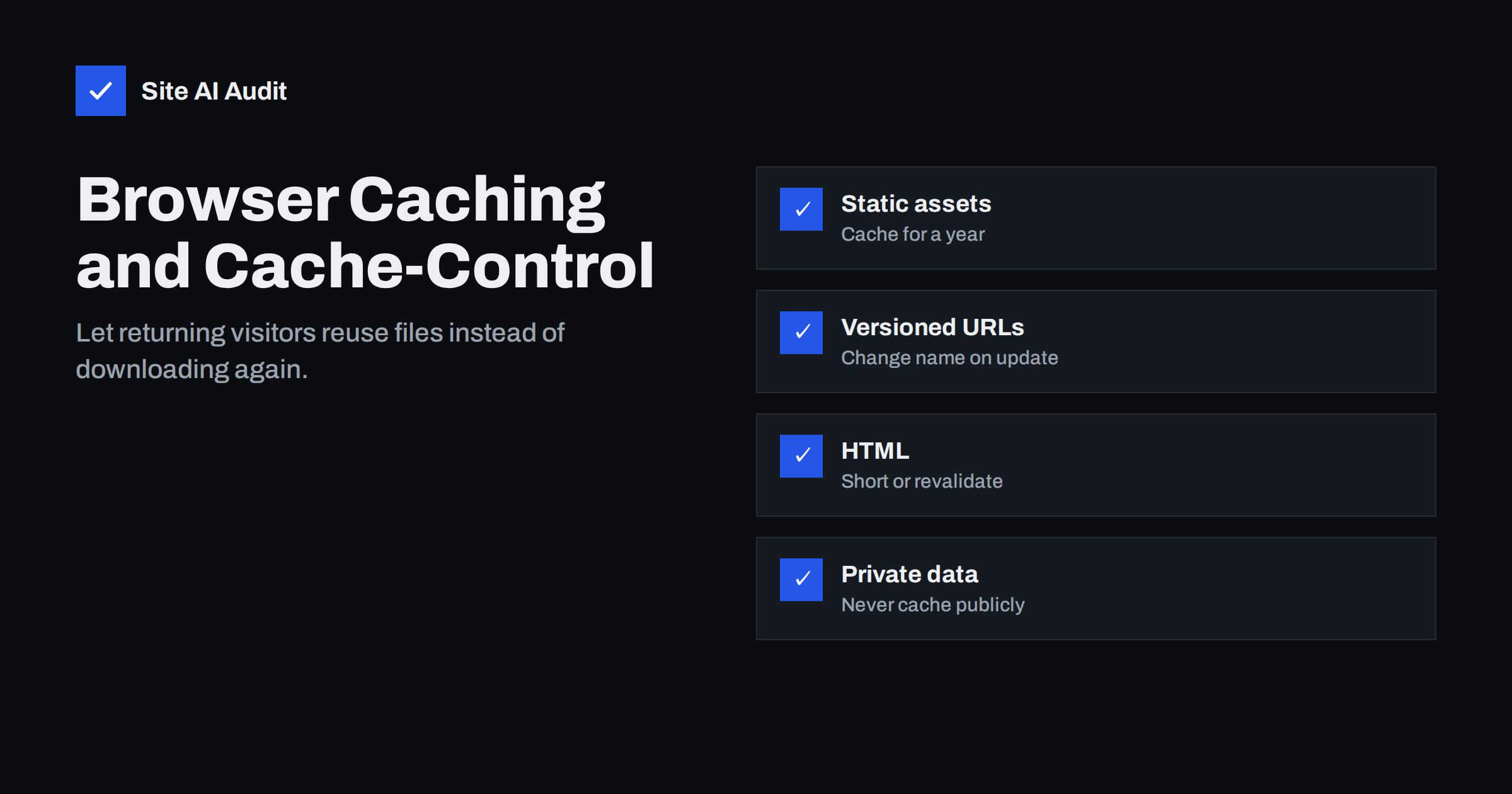
Short answer: Browser caching tells visitors’ browsers to keep copies of files so they do not download them again on the next page or visit. You control it with the Cache-Control response header. A good default is a long lifetime such as max-age=31536000, immutable for versioned static files (CSS, JavaScript, fonts, images), a short lifetime or no-cache with revalidation for HTML, and private or no-store for personal or sensitive pages.
Every time a visitor opens a new page on your site, the browser needs the same logo, stylesheet, fonts and scripts it used on the previous page. Without caching instructions, it may ask the server again for each one, or download them all again. With good caching headers, those files come straight from the device’s disk or memory in milliseconds. Browser caching does not help the very first page view, but it makes every page after that, and every return visit, significantly faster.
How browser caching works
When a server sends a file, it can include headers that tell the browser how long the file stays fresh. While a cached file is fresh, the browser uses it without contacting the server at all. When it becomes stale, the browser can revalidate: it asks the server whether the file has changed, and the server answers either with the new file or with a short 304 Not Modified response that says “keep using your copy”.
Two mechanisms work together:
- Freshness is controlled by
Cache-Control: max-age(in seconds) or the olderExpiresheader. While fresh, no request is made. - Validation uses
ETagorLast-Modifiedheaders. When stale, the browser sends a conditional request, and a 304 response saves downloading the body again.
If a file has no caching headers at all, browsers apply their own heuristics, which are unpredictable. Speed tools flag this as “Serve static assets with an efficient cache policy” or “Use efficient cache lifetimes”.
The Cache-Control directives you actually need
| Directive | Meaning | Typical use |
|---|---|---|
max-age=N | Fresh for N seconds | Static files, short-lived pages |
immutable | Will never change while fresh; do not revalidate | Versioned static files |
no-cache | May store, but must revalidate before each use | HTML that changes often |
no-store | Do not store at all | Sensitive pages, banking, personal data |
public | Shared caches (CDNs, proxies) may store it | Static files served to everyone |
private | Only the user’s browser may store it | Account pages, personalised content |
s-maxage=N | Lifetime for shared caches only | HTML cached at a CDN but not long in browsers |
stale-while-revalidate=N | Serve stale copy while fetching a fresh one in the background | Content where a slightly old version is acceptable |
The name no-cache is confusing: it does not mean “do not cache”. It means “check with the server before using”. Use no-store when you really want nothing stored. The MDN Web Docs reference on Cache-Control lists every directive in detail.
Recommended settings by file type
- CSS and JavaScript with a version in the URL (for example
style.css?ver=6.2orapp.3f9a1c.js):public, max-age=31536000, immutable. - Images, fonts and icons: a long lifetime such as one year if file names change when content changes; otherwise a shorter lifetime such as a week or a month.
- HTML pages:
no-cacheor a shortmax-ageof a few minutes, so visitors see updates quickly. Uses-maxageif you want a CDN to cache HTML longer than browsers. - Logged-in, cart, checkout and account pages:
private, no-storeor at leastprivate, no-cache. - API responses: depends on the data; public, rarely changing data can be cached briefly, personal data should be private.
- Service worker scripts and
sitemap.xml: short or no caching, so updates are picked up.
Cache busting: how to update long-cached files
The fear with long cache lifetimes is obvious: if the browser keeps a stylesheet for a year, how do visitors get your new design? The answer is to change the URL whenever the file changes. The browser treats a new URL as a new file.
- Fingerprinted file names such as
main.8c1d2e.cssare generated by build tools and are the most robust approach. - Version query strings such as
?ver=2.4.1are what WordPress uses for theme and plugin assets. They change when the theme or plugin version changes. - Manual renaming for images: upload a new file with a new name instead of overwriting the old one.
A common pitfall is editing a theme’s CSS file directly on the server without changing its version. Visitors with a cached copy keep seeing the old styles until their cache expires. Bump the version whenever you edit an asset by hand.
How to set caching headers
- Check your host and CDN first. Many managed hosts and CDNs set sensible caching headers for static files automatically, and some let you configure lifetimes in a dashboard.
- Apache: use
mod_expiresandmod_headersin the server configuration or.htaccessto setCache-Controlby file type. - Nginx: use
locationblocks matching file extensions withexpiresoradd_header Cache-Control. - WordPress: many caching plugins can write browser caching rules into
.htaccesson Apache and LiteSpeed servers. On Nginx, the rules must be added to the server configuration. - Applications: frameworks let you set headers per response, which is the right place for HTML and API caching decisions.
How to check your current caching
- Open DevTools, go to the Network panel and reload the page.
- Click a CSS file, an image and the HTML document, and read the
cache-controlresponse header for each. - Reload again (without a hard refresh) and look at the Size column: “memory cache” or “disk cache” means the browser reused the file.
- Run PageSpeed Insights and review the cache lifetime audit, which lists static files with short or missing lifetimes.
Note that files from third parties, such as analytics scripts or social widgets, often have short cache lifetimes that you cannot change. Speed tools list them anyway; focus on your own files.
Browser caching vs page caching vs CDN caching
These three are often confused but solve different problems:
- Browser caching stores files on the visitor’s device. It speeds up repeat views for that visitor only.
- Page caching stores ready-made HTML on your server. It speeds up server response for every visitor.
- CDN caching stores files at servers near visitors. It reduces distance and load on your origin for everyone.
A fast site usually uses all three. The Cache-Control header influences both browser and CDN caches, which is why directives like public, private and s-maxage exist.
A practical example for a small business site
Imagine a typical company website on WordPress with a theme, a contact form plugin and a few images per page. A sensible caching setup would look like this. Theme and plugin CSS and JavaScript, which WordPress loads with a version string, get a one-year lifetime. Uploaded images and fonts get a long lifetime too, because new images are uploaded with new file names. HTML pages are served from a page cache on the server, but browsers are told to revalidate them, so a price change or new blog post appears on the next visit. The contact form’s confirmation page and any customer account area are marked private. With this in place, a visitor who reads three pages downloads the theme files once and afterwards only fetches the small HTML documents and any new images.
Common caching mistakes
- Caching HTML for days, so visitors see old prices or content after an update.
- Long caching on files whose names never change, making updates invisible.
- Public caching of pages with personal data, which can leak one user’s information to another through a shared cache.
- No caching headers at all on static files, often after a server migration.
- Conflicting headers set by both a plugin and the server.
How Site AI Audit helps
Site AI Audit checks your site from the outside, the way a browser sees it. Its speed section combines server response time, compression, page weight and the Google PageSpeed mobile results, where missing cache lifetimes show up as a cause of slow repeat loads. Each finding comes with a plain-language fix, ranked by impact together with SEO, SSL and e-mail checks. Start with a free check.
Related reading
- Gzip vs Brotli: How to Enable Text Compression on Your Server
- How to Reduce Server Response Time (TTFB) for Faster Pages
- How to Read a PageSpeed Insights Report Without Guesswork
The bottom line
Give versioned static files a one-year lifetime and mark them immutable, keep HTML short-lived or revalidated, and never let shared caches store personal pages. Change file names or version strings when files change, so long lifetimes never block an update. Then check the headers in DevTools to make sure what you configured is what visitors receive.
FAQ
How long should I cache static files?
For files whose URL changes when the content changes, one year (max-age=31536000) is the common recommendation. For files that keep the same name after updates, use a shorter lifetime such as a week. The key is to combine long lifetimes with versioned URLs.
What is the difference between no-cache and no-store?
No-cache allows the browser to store the file but requires it to check with the server before each use. No-store forbids storing the response at all. Use no-store for sensitive data and no-cache for content that changes often.
Does browser caching help first-time visitors?
No, first-time visitors have nothing cached yet. Browser caching speeds up the second page they view and any later visits. For first visits, server response time, page weight and a CDN matter more.
Why do visitors still see my old CSS after an update?
Their browser is using a cached copy that is still fresh according to its caching headers. Change the file’s version or name whenever you update it, so the browser requests the new file. WordPress does this automatically when a theme or plugin version changes.
Can I fix cache warnings for Google Analytics or other third-party scripts?
Usually not, because the third party controls those headers. Speed tools list them for completeness. Focus on your own files, and consider whether each third-party script is necessary at all.


